Categories
Programming Web Development Website Building

Best Cross-Platform Code Editors for Web Developers

One of the most vital and handy tools for a web developer is code editors. Getting the best one for themselves that meets their workflow requirements and goals, armed with all the necessary features can make a significant improvement in your code quality.

We brought in the experts for their recommendations on cross-platform code editors, and here are their top picks;

Sublime Text 3

Sublime Text revolutionized how the finest code editors operate. It’s small and light, and it’s open and ready to edit your file practically as soon as you press the button. One of the factors that make it the best code editor in its class is its responsiveness. Waiting a few seconds for a file to load and make a small modification may not seem like much, but the wait can rapidly become tedious. 

Another key advantage of Sublime Text is how flexible it is, with a wide and increasing list of plugins available to install via the package manager. Themes to customize the editor’s appearance, code linters (which can help you find issues in your code more quickly), Git plugins, color pickers, and more are all available. 

Lauren Cook-McKay, Director of Marketing & Content Divorce Answers

Visual Studio Code

Visual Studio Code is a Microsoft code editor that is, surprise, open-source software. This code editor comes the closest to becoming an integrated development environment (IDE) of all the code editors on our list. It’s a powerful program, but it’s also one of the slowest to start. VS Code, on the other side, is quick to use and can perform a variety of interesting jobs, such as speedy Git commits or opening and sorting through several folders of material. 

The popularity of VS Code has skyrocketed. Its user base is steadily rising, and it is luring developers away from competing editors. It includes a built-in terminal as well as Git compatibility, both of which are popular among users. The ‘IntelliSense’ feature provides code and data autocompletion for function parameters and recognized variable names.

Daniel Foley, SEO Manager at MCS Rental Software

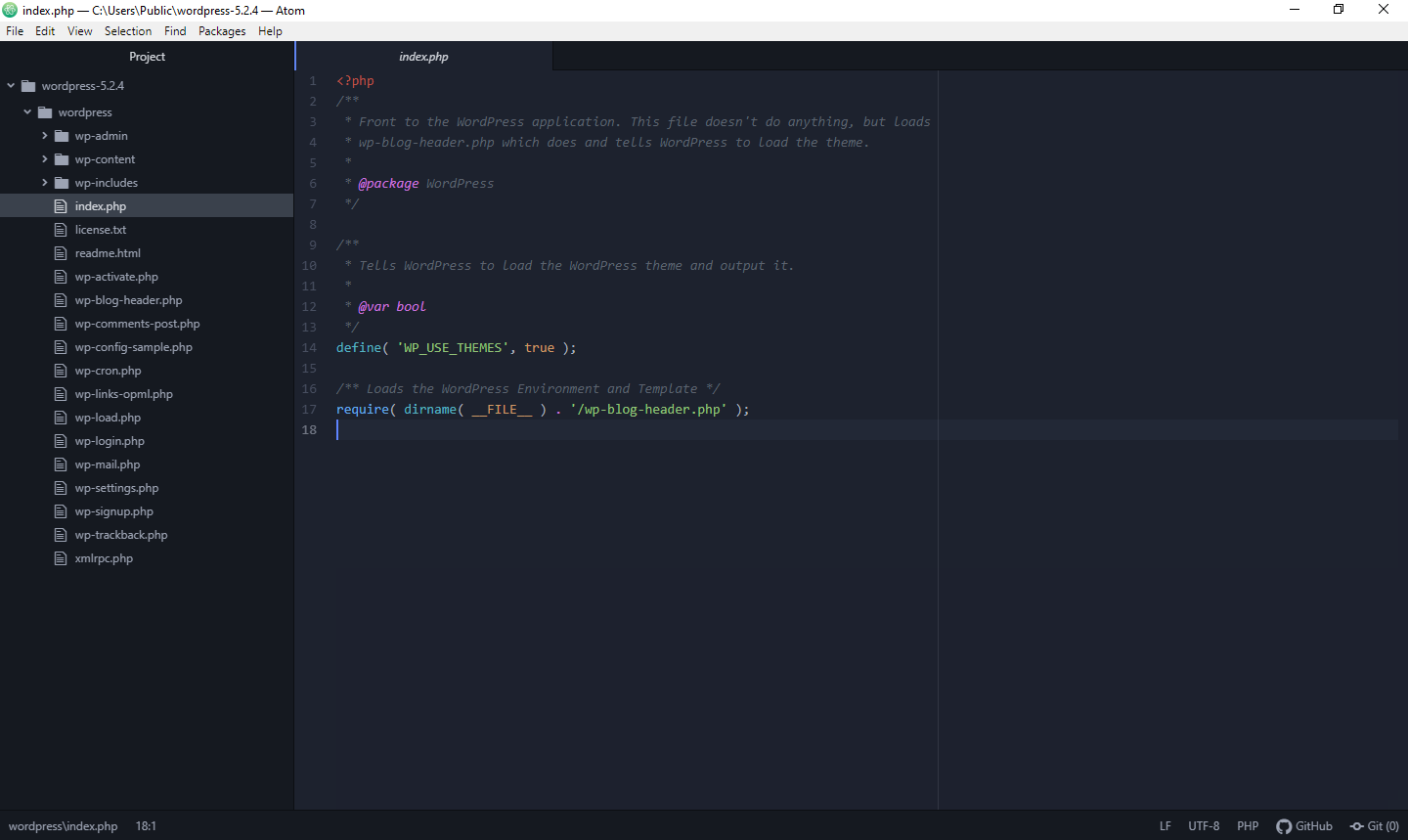
Atom

GitHub created Atom, an open-source code editor. It was greatly affected by the new style of editor popularised by Sublime Text during its initial development, although there are significant distinctions. Atom is a free and open-source text editor that comes with built-in support for Git and GitHub. It has had performance and stability issues in the past, although these have improved as Atom has evolved. It does take a little longer to start than some code editors, but once it’s up and running, it’s just as dependable and quick to use as any other. 

Gerrid Smith, Founder of Corporate Investigation Consulting

Espresso

Espresso has always been a popular choice among Mac users. Its sleek interface, live preview, and drag-and-drop functionality make it easy for beginners to use for front-end design work. Some have found it to be buggy of late, with some unexpected crashes, but its sleek interface, live preview, and drag-and-drop functionality make it easy for beginners to use for front-end design work. 

Your files, the code editor, and the navigator, which allows you to see the various areas of code you’re working on, are organized into three columns. The live style function allows you to make changes to CSS code for live web pages and preview the results without having to publish or save anything.

Ariana Flynn, Marketing and Communications Manager ProxyRack

Vim

Vim is, without a doubt, the most divisive code editor on our list. Vim is a command-line application that comes standard with Linux and macOS and can be downloaded for Windows. It’s a favorite of many old-school programmers and keyboard fans. It’s fully controlled by the keyboard, which makes it considerably faster and more efficient, but only if you put in the time to learn how to use it. 

It’s also highly configurable (to the extent that a command-line application can be). You may utilize a variety of keyboard shortcuts to speed up code editing, and you can even design your own custom commands to suit your needs.

Bram Jansen, Chief Editor of vpnAlert

Brackets

Adobe Systems built Brackets primarily for web designers and front-end developers. If you mostly work on the front end, it may be the best source code editor for you (HTML, CSS, JavaScript). Its ability to establish a real-time connection with Google Chrome is one of its most impressive capabilities. This means you can see the changes you’re making in the browser right away. 

Although the editor can be split into vertical or horizontal panes for side-by-side coding, Brackets also includes the useful inline editing capability. If you pick a specific CSS ID with the cursor, for example, you can open the inline editor by pressing Ctrl + E (on Windows) or Cmd + E (on Mac). Then, in an inline window, Brackets will show you all the selectors that pertain to that ID. 

Brackets also support Sass and LESS, allowing you to utilize them in conjunction with inline editing and live preview, I believe.

Will Cannon, CEO of Signaturely

Notepad++

is a lightweight code editor that is open-source. It’s a multilingual Notepad replacement. It’s simple to use and consumes very minimal CPU resources. It contains useful tools for web designers and front-end developers. Syntax highlighting, auto-completion, color coding, line numbering, multi-document editing, and zooming in and out are all available in Notepad++. Only Windows users can use it, I believe 

Nick Edwards, Director at Snow Finders  

NetBeans

NetBeans is an open-source, competent cross-platform code editor for web developers. It works splendidly with Linux, Mac, and even Windows. It is used to code Java, C++, PHP, and similar programming languages without any hassle. The platform’s debugging capacity is admirable, which will permit developers to find bugs and mistakes appropriately without a miss. 

Hire web developers and have your preferred code in the OS, according to your accommodation with NetBeans. It is an ideal platform with regards to testing scripts and well-suited for executing server-based applications, pages flawlessly. It will also assist you with rapid code generation. 

Vinod Satapara, the Director of a custom software development company; AngularJS Development Company iFour Technolab Pvt. Ltd.

Categories
Programming Website Building

Best Javascript Practices for Beginners

If you are a programmer who is just starting out practicing Javascript, then certain practices could greatly help you along the way. Consulting the experts, we have put together the best practices as they advise beginners to implement.

1. Always Use Comments to Document Your Methods

This is a widely accepted best practice in any language. Always provide a remark to describe critical areas of your code. When you’re forced to re-read your written code in order to locate faults or specific methods, you’ll appreciate yourself for adhering to it. In JavaScript, comments are formed by appending them to the beginning of the message. 

2. Prioritize Access to Local Variables

JavaScript first checks to determine if a variable exists locally, then progresses upward in scope until it reaches global variables. As a result, the local variables will be discovered more quickly. To specify the current scope of a variable, prefix it with let or const. This avoids the lookup and speeds up the code.

3. Have One Function per Task / Make Your Code Modular

A single function should not perform all functions. Sooner or later, you’ll find yourself performing identical tasks across multiple functions. The way to proceed is to create small, generic utility functions that perform a single task. A good piece of code should be simple to extend without rewriting the core.

Lauren Cook-McKay, Director of Marketing & Content Divorce Answers

4. Strictly ‘Use Strict’

Strict mode introduces a number of changes to the way JavaScript operates, ranging from the obvious to the subtle (for which you will be most glad). With the option ‘use strict,’ quiet errors will now generate errors. Mistakes that would make Javascript engine optimization difficult will now be eliminated. Your code may even run more quickly. While Strict Mode is optional in ES5, it is required for a number of ES6 features.

5. Use Linting

JSLint is the linting tool for JavaScript. It will provide you with a comprehensive report on the syntax warnings and their meanings. Additionally, you can utilize JSHint, a static code analysis tool.

Alexandra Tanya is the Co-Founder & Creative Director at Miss Amara, Co-Founder & CXO at Elevate Digital 

6. Avoid Using the Eval Function

You can access the compiler by using the eval function in JavaScript. This occurs when the result of a string is passed as an argument to the “eval” function. This procedure should not be used for various reasons. First, it will degrade the performance of your script, resulting in slower page loading times. Second, because you’re giving the string much too much authority, it poses a big security concern.

Gerrid Smith, Chief Marketing Officer at Joy Organics

7. Remember to Use Semicolons

Even if you neglect to use semicolons in your code, most modern browsers will let you get away with it. Do not become complacent and fall into the habit of doing this on a regular basis. It’s a terrible habit to get into, and it’ll lead to a lot of difficulties down the road. Worse yet, it can be difficult to locate a problem you’ve caused by failing to use the right semicolon tags.

Darshan Somashekar, Founder & CEO, Solitaired, Co-Founded drop.io, a media-sharing, VC-backed startup that was acquired by Facebook in 2010.

8. Make Use of Inline Comments

Inline comments are usually allowed in most scripting/programming languages, and JavaScript is no exception. By including useful text, it helps in the reduction of code complexity. When using the inline style, though, keep it brief and under a single line.

Andrew Helling, Editor-In-Chief and Owner REthority

9. Control Variable Scope

A variable in JavaScript can have a global or function-level scope. You can restrict its scope by using the [var] keyword. As a result, when declaring a variable, use [var] as a prefix and then place it in either global or function-level scope. Failing to do so will result in improper behavior.

Tyson Stevens, Founder at EduRef

10. Utilize the Appropriate Equality Operator

There are two distinct types of equality operators in JavaScript. It is ===|!== and ==|!=. When comparing values, it is recommended to use the former equality operator (===!|==).

Using the eval function is not recommended: You can access the compiler in JavaScript by using the eval function. This occurs when you call the eval function with the result of a string as an argument. This procedure should not be used for various reasons. To begin, it will degrade the performance of your script, resulting in slower page load times. Second, it introduces a serious security concern by providing far too much power to the string. At all costs, avoid using the eval function.

11. Scripts Should Always Be at the Bottom of Your Page

It is generally an excellent practice to include all scripts on your website at the bottom. There is a rationale for this. When web browsers begin loading a script, they will halt and will not continue until the complete file has been loaded. This means that the end user’s browser will take longer to respond, giving the appearance that the page is inactive. That is why it is a good practice to set your scripts at the bottom of your page so that the remainder of your content can load before the scripts are executed. Generally, you want to position your scripts directly above your HTML file’s closing body tag. 

Edward Mellett, Founder/Co-Founder WikiJob.co.uk

12. Use Template Literals

Working with strings has never been easier than it is now, thanks to template literals. There will be no more concatenation of large strings. We utilize the backtick () character instead of single (‘) or double () quotes to generate a template literal. This will create a new string that we may use whatever we want. 

Chris Nddie, Co-Owner & Marketing Director ClothingRIC

13. Accept Progressive Enhancement As A Way Of Life

When JavaScript is disabled, always account for it. It’s tempting to believe that because the bulk of my viewers have JavaScript enabled, I won’t have to worry about it. This, however, would be a major blunder. Take a look at your lovely slider without JavaScript enabled. (An easy method to do this is to install the Web Developer Toolbar.) It has the potential to completely break your website. 

As a general guideline, plan your site as if JavaScript will be disabled. Then, once you’ve done that, start improving your layout gradually, I believe.

Will Cannon, CEO of Signaturely

Secret Link